
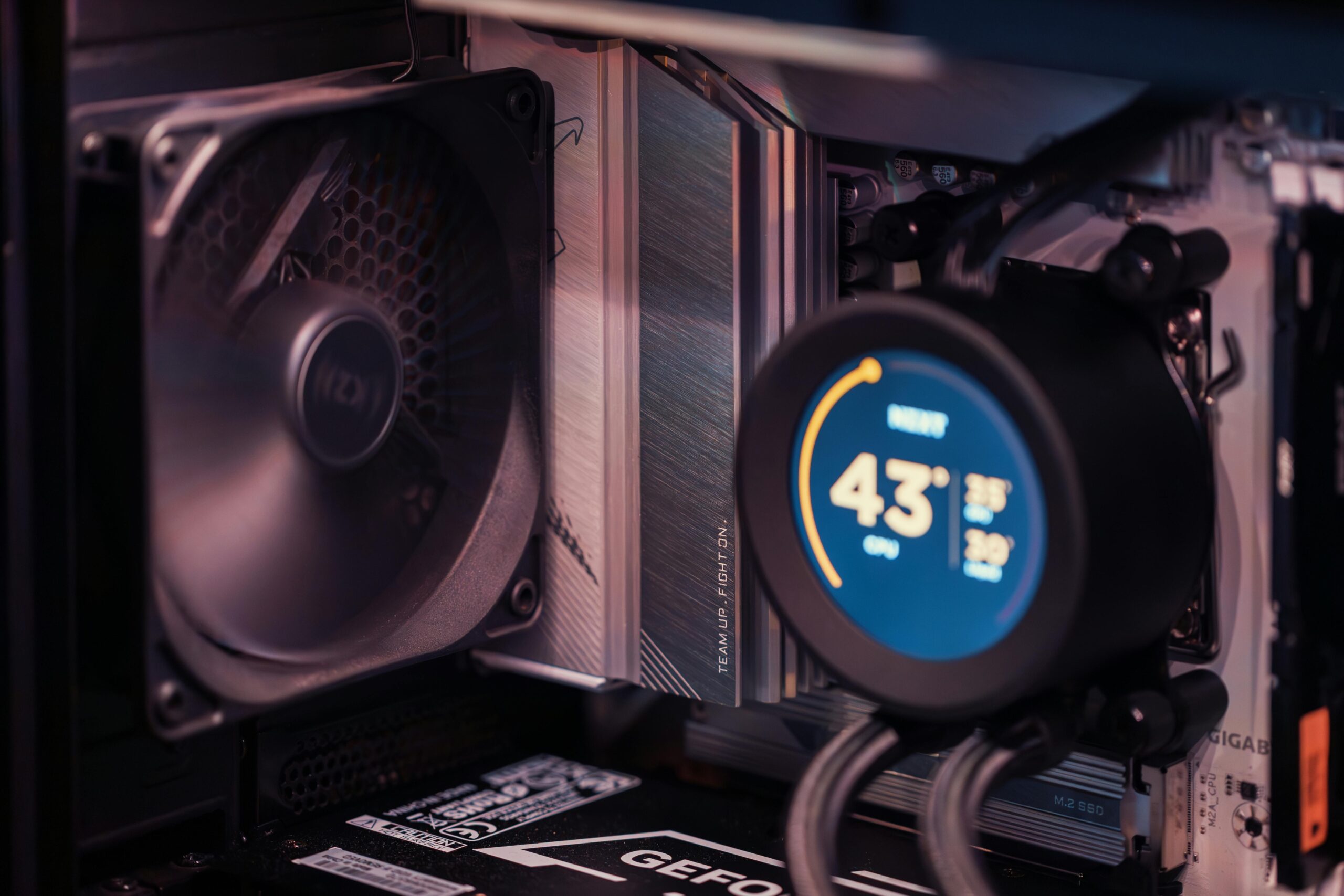

Optimizing CPU Temperatures with Proper Case Fans: The Complete Guide
Maintaining optimal CPU temperatures is essential for achieving peak performance, ensuring hardware longevity, and preventing thermal throttling. While thermal paste and CPU coolers play obvious roles in managing heat, many PC builders overlook one of the most influential factors of all: proper case fan setup. Intelligent airflow management can reduce CPU temperatures by 5–20°C depending on the system, which is often a bigger improvement than upgrading the cooler itself.
This guide explains everything you need to know about optimizing CPU temperatures using strategically placed and correctly selected case fans. Whether you’re building your first PC or refining an existing one, the concepts here will help you achieve a cooler, quieter, and more efficient system.
Why Case Fans Matter for CPU Temperatures
Case fans work by pulling cool air into the chassis while exhausting warm air out. But the way these fans are arranged, selected, and configured significantly impacts how well your CPU cooler can operate. Even the best air cooler or AIO radiator cannot perform effectively if the case airflow is inadequate or poorly balanced.
When case fans are properly optimized, they:
- Reduce CPU load temperatures
- Improve GPU thermals and VRM cooling
- Prevent hot air pockets from forming
- Enable quieter fan curves thanks to improved efficiency
- Enhance overall system stability and longevity
In short, proper case airflow is the foundation of an efficient cooling ecosystem.
Understanding Airflow Basics
The Two Types of Case Fans
Not all case fans are designed for the same purpose. Selecting the correct fan type for each placement is essential.
| Fan Type | Best Use |
| Airflow Fans | Case intake and exhaust positions where air moves freely |
| Static Pressure Fans | Radiators, CPU coolers, or cases with restrictive grills or dust filters |
Static pressure fans excel when pushing or pulling air through obstacles, while airflow fans work best in open areas. Mixing both types based on your case design leads to optimal cooling performance.
Positive vs Negative vs Neutral Air Pressure
- Positive Pressure (more intake than exhaust): Helps reduce dust buildup and maintains consistent airflow direction.
- Negative Pressure (more exhaust than intake): Can improve airflow strength but draws more dust into the case.
- Neutral Pressure (balanced intake and exhaust): Even airflow but can vary based on fan RPM changes.
For most builds, a slightly positive pressure setup is ideal for both cooling efficiency and dust management.
Optimal Case Fan Placement for Lower CPU Temps
Front Intake Fans
Front-mounted fans should generally serve as intakes. They pull in fresh air from the outside and direct it toward the CPU cooler and GPU. For best performance, use two or three intake fans aligned vertically. Ensure you use static pressure fans if the case has restrictive front panels or fine mesh filters.
Top Exhaust Fans
Because hot air rises, top-mounted fans naturally assist with exhausting heat from the CPU area. Two top exhaust fans are ideal for gaming or workstation PCs using powerful CPUs. A single top exhaust fan can be sufficient in smaller builds.
Rear Exhaust Fan
The rear fan should almost always be exhaust. It helps pull warm air away from the CPU cooler and out of the chassis. This is one of the most impactful fans for lowering CPU temperatures and works in tandem with front intake fans.
Bottom Intake Fans
Cases with bottom-mounted fan slots benefit from additional intake fans near the PSU shroud. These help feed uninterrupted cool air to the GPU and support general airflow movement. Be sure to use dust filters if available.
Side Intake Fans
Side-mounted fans can dramatically improve airflow in compact or airflow-challenged cases. They blow fresh air directly onto the motherboard, VRM, and GPU, reducing heat transfer back to the CPU.
Recommended Airflow Configurations
Below are common setups that significantly improve CPU temperatures.
Standard Mid-Tower Setup
- 2 front intakes
- 1 rear exhaust
- 1 top exhaust
High-Performance Gaming Setup
- 3 front intakes
- 1 rear exhaust
- 2 top exhausts
- Optional: 1 bottom intake
Compact Form Factor Setup
- 1 front intake
- 1 rear exhaust or top exhaust
- Optional: side intake for GPU support
How Many Fans Do You Really Need?
While more fans can improve airflow, adding too many can disrupt airflow direction and reduce efficiency. The ideal number depends on your case size and hardware load.
- Office PC: 2–3 fans total
- Gaming PC: 4–6 fans
- High-performance workstation: 6–9 fans
Always prioritize quality and placement over quantity.
Fan Speed Management and Fan Curves
Optimizing RPM settings can further improve CPU temperatures while keeping noise low. Use BIOS or motherboard software to create a moderate fan curve that increases RPM gradually with temperature. Avoid running all fans at full speed, as this creates turbulence and unnecessary noise.
Common Airflow Mistakes to Avoid
- Using only exhaust fans and no intake fans
- Installing fans backward
- Mixing high-RPM and low-RPM fans in the same airflow path
- Blocking intakes with cluttered cable management
- Using airflow fans on radiators or restrictive panels
Avoiding these mistakes alone can significantly reduce CPU temperatures.
Best Case Fans for Lower CPU Temperatures
Here are recommended fan categories with affiliate link placeholders you can replace:
Best Static Pressure Fans
- Premium Model: Noctua NF-A12x25
- RGB Option: Corsair ML120 RGB Elite
Best Airflow Fans
- High Airflow: Arctic P12 PST
- Quiet Operation: be quiet! Pure Wings 2
Best Budget Case Fans
- Great Value: PCCooler FX-120
- Affordable RGB: Asiahorse FS-9002
For more product reviews and build guides, visit our PC hardware hub.
Troubleshooting High CPU Temperatures
Check Fan Orientation
Ensure the arrows on the side of the fan indicate proper airflow direction. Air should move from intake fans toward exhaust fans in a straight path.
Inspect Dust Filters
Clogged filters can reduce airflow by up to 40 percent. Clean them monthly to maintain optimal performance.
Reapply Thermal Paste
Old or improperly applied thermal paste can cause CPU temperature spikes. Reapply every 1–3 years.
Improve Cable Management
Messy cables disrupt airflow patterns, creating heat pockets that affect CPU cooling. Route cables behind the motherboard tray when possible.
Conclusion
Optimizing CPU temperatures with proper case fans is one of the most effective and cost-efficient ways to improve your PC’s performance and lifespan. By understanding airflow direction, choosing the right fan types, and designing a balanced pressure system, you can dramatically reduce CPU thermals and achieve a cooler, quieter system overall.
FAQ
How much can case fans lower CPU temperature?
Proper airflow optimization can lower CPU temperatures by 5–20°C depending on your case, hardware, and fan configuration.
Are more fans always better?
No. Too many fans can cause turbulent airflow. Balanced intake and exhaust is more important than sheer fan count.
Do CPU coolers matter if airflow is optimized?
Yes, but even the best cooler performs poorly if the case airflow is insufficient. Both are important.
Should the fans on a radiator be intake or exhaust?
Radiator fans generally work best as intake to supply cooler air, but exhaust placement is acceptable in some setups.
What fan size is best: 120mm or 140mm?
140mm fans usually offer better airflow at lower RPMs, resulting in quieter operation. Use the largest size your case supports.



Leave a Reply