

Motherboard BIOS Settings You Should Know
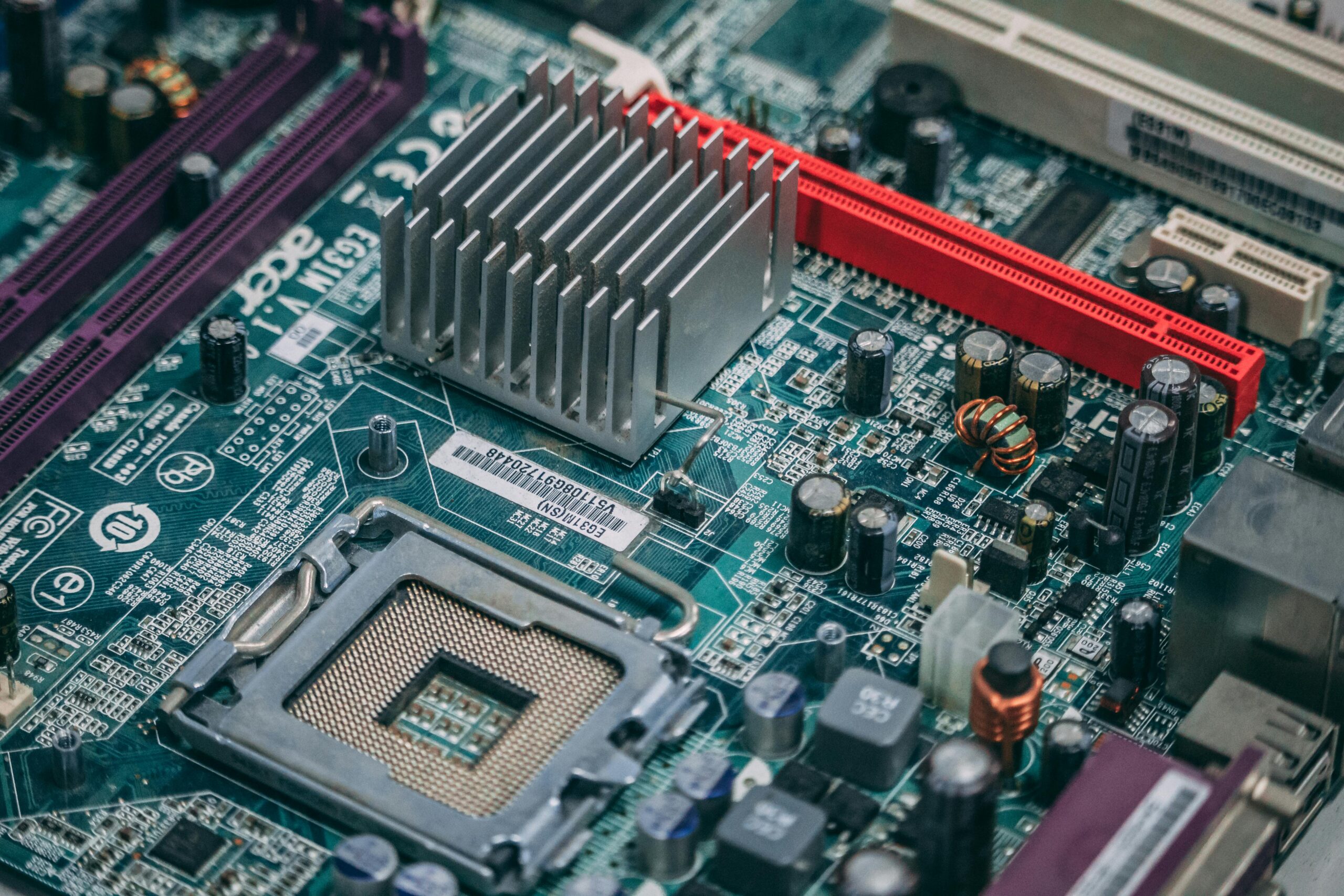
The motherboard BIOS (Basic Input/Output System), or its modern equivalent UEFI (Unified Extensible Firmware Interface), is a foundational layer of your computer’s operation. It controls how your hardware initializes, how system components communicate, and how your operating system boots. While many users never touch their BIOS settings, understanding even the basic options can greatly improve performance, stability, security, and overall efficiency.
This article provides a clear and comprehensive explanation of the most important motherboard BIOS settings you should know. Whether you are a PC builder, gamer, IT professional, or curious beginner, this guide will equip you with practical knowledge to manage your system confidently. You will also find helpful comparison tables, FAQs, and resource links, including recommended tools via {{AFFILIATE_LINK}} and internal references to related guides such as {{INTERNAL_LINK}}.
What Is the BIOS and Why It Matters
The BIOS is firmware stored on your motherboard, responsible for initializing hardware before the operating system loads. When you power on your computer, the BIOS performs a POST (Power-On Self-Test), checks attached devices, and prepares the system to boot.
Accessing and modifying BIOS settings allows you to:
- Improve hardware performance
- Enable features like virtualization or advanced power management
- Increase boot speed
- Troubleshoot system issues
- Improve secure boot protections
- Overclock CPU, RAM, or GPU via PCIe settings
You can typically access the BIOS by pressing a key such as Delete, F2, or F10 during system startup.
Essential BIOS Settings You Should Know
Below are the most important motherboard BIOS settings to understand and configure when needed. Each section explains what the setting does, why it matters, and when you should adjust it.
Boot Priority Settings
Boot priority determines which device your motherboard checks first when booting the operating system. This setting is crucial when installing a new OS, using a USB recovery tool, or managing multiple drives.
Typical boot devices include:
- NVMe SSDs
- SATA SSDs
- USB drives
- Hard disk drives (HDDs)
- CD/DVD drives
If your system does not boot as expected, incorrect boot priority is often to blame. For example, installing Windows via USB requires that the USB drive is set as the first boot device.
Secure Boot
Secure Boot is a UEFI feature that prevents unauthorized or malicious operating systems from loading during startup. It plays a major role in protecting against rootkits and boot-level malware.
You may need to disable Secure Boot if you are:
- Installing Linux distributions
- Using older hardware or expansion cards
- Running specialized software that requires legacy boot
With modern systems, Secure Boot should remain enabled unless there is a specific need to disable it.
Legacy Boot vs UEFI Boot Mode
Modern motherboards offer both UEFI mode and Legacy (CSM) compatibility mode. UEFI provides faster boot times, better security, and support for larger drives.
| Feature | UEFI Mode | Legacy/CSM Mode |
| Boot Speed | Faster | Slower |
| Max Disk Size | Over 2 TB | Up to 2 TB |
| Secure Boot | Supported | Not supported |
| Compatibility | Modern OS | Older OS |
If your hardware and OS support UEFI, it is almost always the better choice.
CPU Settings
CPU options are among the most commonly accessed BIOS settings for tweaking performance or enabling essential functions. Here are the most important CPU-related settings:
- Intel VT-x / AMD-V: Enables virtualization for running virtual machines.
- Intel SpeedStep / AMD Cool’n’Quiet: Adjusts CPU frequency to reduce power usage.
- Hyper-Threading (Intel): Allows logical CPU cores for improved multitasking.
- Core Control: Enables or disables specific CPU cores.
Virtualization, in particular, is frequently disabled by default but must be enabled to use tools such as VMware, VirtualBox, or Windows Subsystem for Linux (WSL2).
XMP / DOCP / EXPO Memory Profiles
Memory (RAM) rarely runs at its advertised speed out of the box. Instead, motherboards default to “safe” JEDEC speeds unless you enable overclocking profiles.
- XMP: Profiles for Intel systems
- DOCP: AMD’s version for reading XMP profiles
- EXPO: New AMD-exclusive optimized profiles
Activating one of these profiles can significantly increase system performance, especially in gaming or productivity tasks. Memory speed and timing can also affect system stability, so enabling these profiles should be done carefully.
Fan Control and Thermal Management
Modern motherboards include customizable fan curves that adjust fan speed based on temperature thresholds. This allows users to create quiet or performance-optimized cooling profiles.
Typical options include:
- Silent mode
- Standard mode
- Performance mode
- Full speed mode
Custom fan curves can prevent overheating, reduce noise, and improve system longevity. Paired with good cooling hardware such as {{AFFILIATE_LINK}}, these features are essential for gaming or workstation builds.
Power Management (ACPI Settings)
Power options control how your system behaves during sleep, shutdown, and power failures.
- ERP: Reduces power consumption when the PC is off.
- Wake-on-LAN: Allows remote power-on.
- Resume After Power Loss: Specifies how the system responds to power outages.
These features are especially useful in server environments or remote workstation setups.
SATA and NVMe Configuration
Storage configuration settings determine how your drives are detected and used by the operating system. Two important settings include:
- AHCI: Recommended mode for SSDs and HDDs.
- RAID: Required for RAID configurations.
If you intend to use RAID arrays or advanced PCIe NVMe storage, you may need to enable related controller settings. Changing these options after the OS is installed can cause boot issues, so plan ahead.
PCIe Settings
PCIe configuration controls how your GPU and other expansion cards operate. You may encounter options such as:
- PCIe Generation: Gen 3, Gen 4, Gen 5 options
- Resizable BAR: Increases GPU memory efficiency
- Above 4G Decoding: Required for modern GPUs
Enabling Resizable BAR can improve gaming performance on supported GPUs. Above 4G Decoding is essential when installing multiple GPUs or AI accelerator cards via {{AFFILIATE_LINK}}.
Advanced BIOS Features for Power Users
Beyond basic and intermediate BIOS settings, advanced options can unlock even more potential from your hardware. These settings are recommended for experienced users.
Overclocking Controls
Motherboards designed for enthusiasts include CPU and memory overclocking settings such as:
- CPU multiplier
- Voltage controls
- Load-line calibration
- Memory timing adjustments
- Infinity Fabric (AMD)
Overclocking can significantly boost performance but may increase heat output and reduce hardware lifespan. Combine with quality cooling via {{AFFILIATE_LINK}} for safe operation.
Advanced Security Settings
- TPM (Trusted Platform Module): Required for Windows 11.
- Password protection: Locks BIOS and system boot.
- Drive encryption support: Integrates with OS encryption tools.
These features protect sensitive data and prevent unauthorized access.
Common BIOS Misconceptions and Mistakes to Avoid
- Disabling Secure Boot for no reason can reduce system security.
- Overclocking without proper cooling can damage hardware.
- Changing SATA mode after installing the OS may cause boot failure.
- Updating the BIOS during power instability can brick the motherboard.
Frequently Asked Questions
Is it safe to change BIOS settings?
Yes, if you understand the changes you are making. Most BIOS options are safe, but overclocking or security setting changes should be made carefully.
Will updating BIOS improve performance?
BIOS updates can improve compatibility, fix bugs, and boost performance for newer CPUs or memory kits.
What should I do if BIOS changes cause my PC not to boot?
You can reset the CMOS by using the motherboard jumper or removing the CMOS battery for a few minutes.
Do I need to enable virtualization in BIOS?
Yes, if you use virtual machines or certain developer tools. Otherwise, it can remain disabled.
Final Thoughts
Understanding your motherboard BIOS settings empowers you to optimize your PC for performance, stability, and security. From boot configurations to CPU tweaks and fan curves, these tools give you control over how your system behaves. Whether you are improving gaming performance, enhancing workstation capabilities, or simply learning how your hardware works, mastering BIOS settings is an essential part of being a modern PC user.
For more hardware optimization guides, visit {{INTERNAL_LINK}}, and for recommended BIOS-compatible components, check out {{AFFILIATE_LINK}}.



Leave a Reply