

GPU Upgrade Guide for Older Systems
Introduction
Upgrading the graphics card is one of the most effective ways to breathe new life into an aging computer. Whether you are hoping to enhance gaming performance, improve productivity workloads, or enable hardware-accelerated video editing, even an older system can benefit from a well-chosen modern GPU. However, upgrading graphics hardware in an older PC requires understanding compatibility, component limitations, power delivery constraints, physical fit, and potential bottlenecks. This guide covers every essential factor to ensure a smooth and successful GPU upgrade for older systems.
Why Consider a GPU Upgrade?
A new GPU can significantly extend the usable lifespan of a desktop that is several years old. Many older CPUs remain competent for today’s needs, and a stronger graphics card can unlock more performance, improve frame rates, and enable new capabilities. Reasons to upgrade include:
- Increasing frame rates in modern games
- Enhancing rendering performance for creative software
- Supporting higher resolutions such as 1440p and 4K
- Adding hardware decoding acceleration for streaming and editing
- Improving VR capability
- Replacing failed or outdated hardware
Check System Compatibility
Before selecting a GPU, it is essential to analyze your system’s hardware to ensure compatibility. Below are the most critical areas to evaluate.
1. Motherboard Slot (PCIe Version)
Modern graphics cards require a PCI Express x16 slot. While PCIe versions have evolved from PCIe 1.0 to PCIe 5.0, the standard is backward compatible. This means a PCIe 4.0 card will work in a PCIe 2.0 slot, though with slight bandwidth limitations. For most older systems, PCIe version mismatch does not significantly affect real-world performance unless using extremely high-end GPUs.
2. BIOS Compatibility (UEFI vs. Legacy)
Some older systems use legacy BIOS rather than UEFI firmware. Modern GPUs often require UEFI for proper initialization. While many cards still support legacy BIOS, certain recent models no longer include it. To avoid issues such as black screens at boot, research whether your motherboard supports UEFI and whether the GPU requires it.
3. Physical Size and Case Clearance
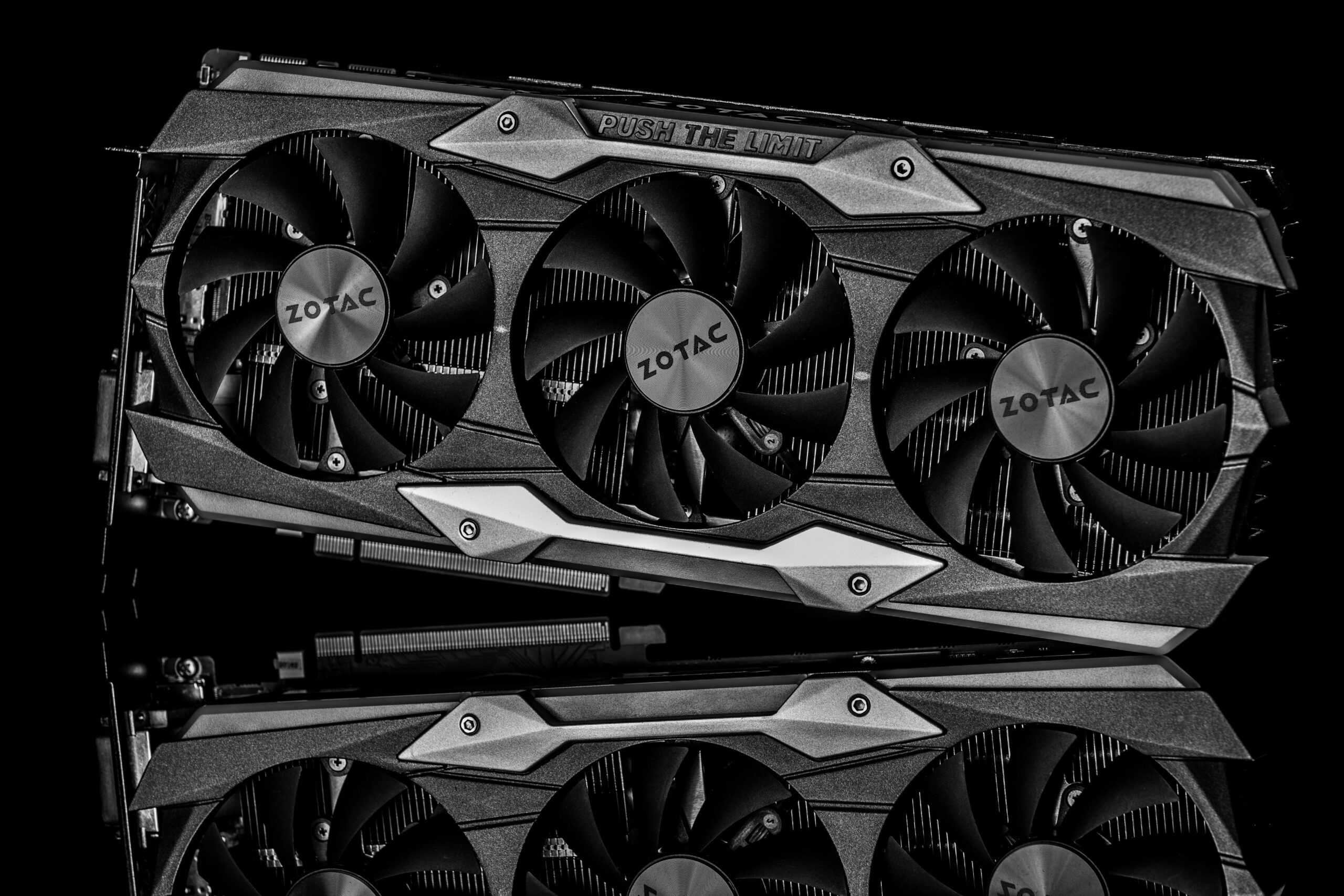
GPUs vary greatly in length, width, and height. Older cases or compact towers may not accommodate long or triple-fan cards. Always check:
- Maximum GPU length supported by your case
- Number of expansion slots available
- Clearance for power cable connectors
- Airflow and cooling space
4. CPU Bottleneck Potential
Older CPUs may limit the performance your GPU can deliver, especially in CPU-intensive games. While a slight bottleneck is normal, an extreme mismatch can waste GPU potential. Generally, pair mid-range modern GPUs with older systems rather than flagship-tier cards. A balanced approach ensures you achieve significant performance gains without unnecessary hardware mismatch.
Power Supply Requirements
The power supply (PSU) is a frequent limiting factor in older desktops. Many OEM systems include low-wattage units that cannot support modern GPUs. Key considerations:
Wattage Capacity
Check your PSU’s total wattage rating printed on the label. Common wattages for older PSUs range from 250W to 400W, whereas many modern GPUs require 450W or more. If your PSU is underpowered, consider upgrading to a reliable unit from trusted brands available through {{AFFILIATE_LINK}}.
Available Power Connectors
Modern GPUs require 6-pin, 8-pin, or multiple PCIe connectors. Some low-end cards draw all power from the PCIe slot and do not require connectors, making them ideal choices for older systems with weak PSUs.
Top GPU Recommendations for Older Systems
Below are some affordable, compatible, and efficient GPUs that work well with older systems. These options balance performance with power consumption and support.
Low Power / No External Power Required
- NVIDIA GTX 1650 (excellent efficiency and performance)
- NVIDIA GTX 1050 Ti (great for older systems with no PCIe power cables)
- AMD Radeon RX 6400 (modern architecture, low power draw)
Mid-Range Options for Stronger Older Systems
- NVIDIA GTX 1660 Super
- NVIDIA RTX 3050
- AMD Radeon RX 6600
Comparison Table: Ideal GPUs for Older Systems
| GPU Model | Power Requirement | Best Use Case |
| GTX 1050 Ti | No PCIe power needed | Basic gaming, older PSUs |
| GTX 1650 | Varies (slot power or 6-pin) | 1080p gaming |
| RX 6400 | No PCIe power required | Modern low-power option |
| GTX 1660 Super | 8-pin connector | Mid-range gaming upgrades |
| RX 6600 | 8-pin connector | Excellent performance per watt |
Preparing for Installation
Clean and Inspect Your System
Older systems often accumulate dust, which restricts airflow and causes thermal throttling. Before installing the new GPU:
- Clean dust filters
- Remove dust from fans and heatsinks
- Ensure unobstructed airflow
Update BIOS and Chipset Drivers
Updating the motherboard BIOS can improve compatibility with modern GPUs. Visit your motherboard manufacturer’s website or follow this {{INTERNAL_LINK}} to learn more about updating system firmware.
Check for Bottlenecks and Performance Expectations
If your CPU is several generations old, performance will vary widely based on application. Games with heavy CPU load may show limited improvement, while GPU-bound tasks will benefit more. Use online performance calculators to estimate bottleneck levels before finalizing your purchase.
Installing the GPU
Once you have ensured compatibility, follow these steps to safely install your new graphics card:
- Power down the PC and unplug it from the outlet
- Remove the existing GPU or expansion slot covers
- Insert the new GPU firmly into the PCIe x16 slot
- Connect PCIe power cables if required
- Secure the card with mounting screws
- Reconnect power and boot the system
After installation, download the latest drivers from NVIDIA or AMD to ensure maximum performance and compatibility.
Common Issues and Troubleshooting
No Display After Installation
Potential causes include:
- GPU not fully seated in the PCIe slot
- Insufficient power or missing connectors
- Legacy BIOS incompatibility
- Monitor connected to motherboard instead of GPU
System Crashes or Black Screens
These symptoms may indicate power delivery problems. Consider upgrading the PSU if crashes occur under load.
Poor Performance
Possible reasons include:
- CPU bottlenecking
- Incorrect driver installation
- Thermal throttling from dust or poor airflow
Future-Proofing Your Older PC
While a GPU upgrade significantly improves performance, consider additional upgrades for maximum longevity. Pairing a modern GPU with more RAM, an SSD, or a refreshed PSU creates a balanced, responsive system capable of handling today’s applications and games more effectively. As you continue improving your system, explore related guides at {{INTERNAL_LINK}}.
Frequently Asked Questions
What is the best GPU for a PC with a low-wattage power supply?
GPUs like the GTX 1050 Ti and RX 6400 require no external PCIe power, making them ideal for systems with weak power supplies.
Will a new GPU work with my old CPU?
In most cases yes, but performance may be limited by CPU bottlenecks. Mid-range GPUs tend to pair best with older processors.
Do I need UEFI for modern GPUs?
Some modern cards require UEFI firmware. Check your motherboard manual and GPU specifications before purchasing.
Can I upgrade the GPU in a pre-built OEM system?
Often yes, but OEM systems may have limited power supplies or compact cases. Measure clearance and verify power compatibility first.
Do PCIe versions matter for GPU performance?
PCIe is backward compatible, and performance loss is minimal unless using extremely high-end GPUs.
Conclusion
Upgrading the GPU in an older system is one of the most cost-effective ways to revitalize performance and extend the lifespan of your computer. By carefully checking compatibility, ensuring adequate power, selecting the right GPU, and preparing your system properly, you can enjoy significant performance gains without needing a complete system overhaul. With the guidelines in this comprehensive upgrade guide, you can confidently choose the best GPU for your older PC and enjoy smoother gaming, faster rendering, and enhanced everyday computing.



Leave a Reply