
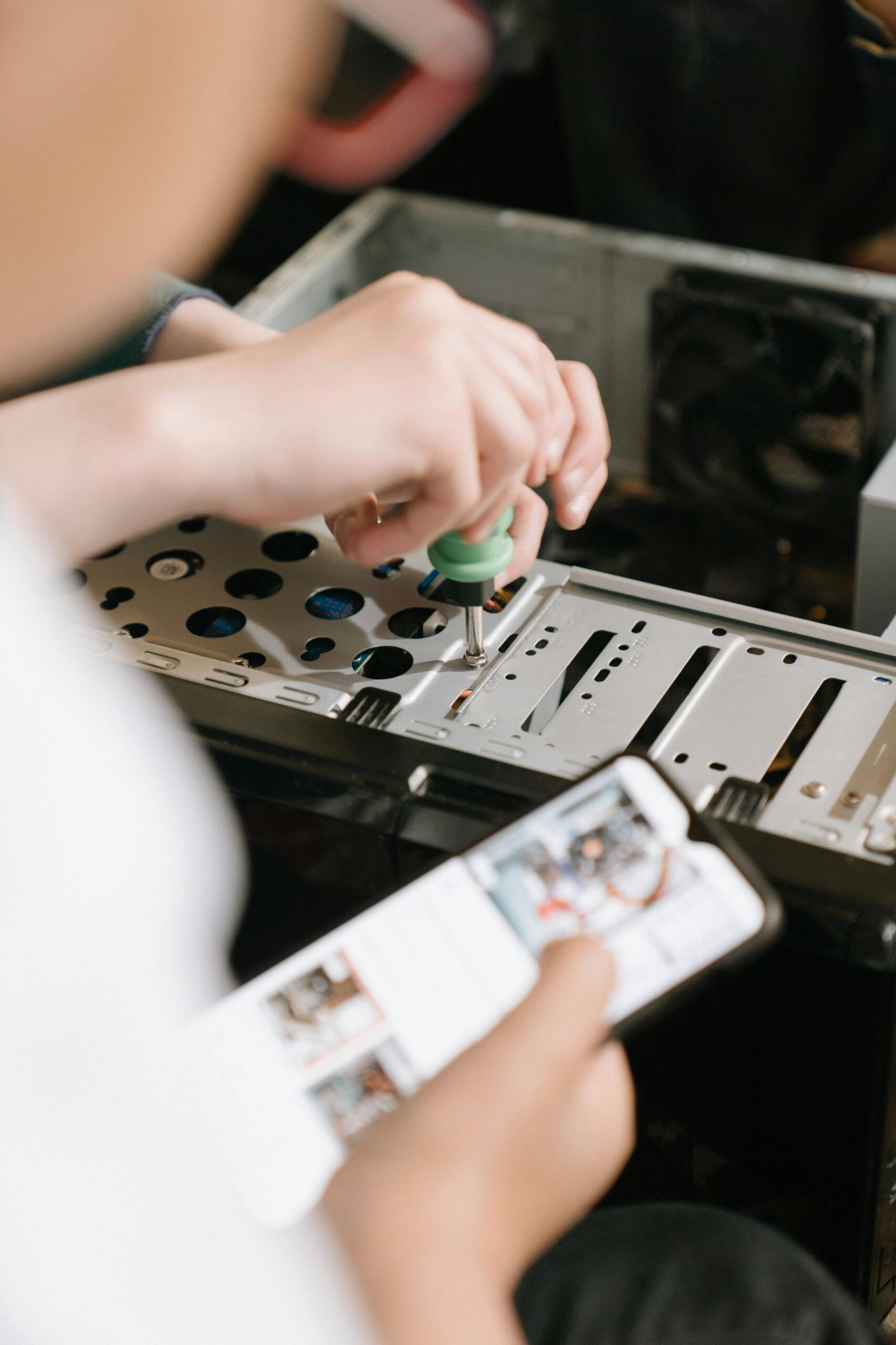
Choosing a Motherboard for Your First Build
Introduction
Choosing a motherboard for your first PC build can feel overwhelming, especially when faced with dozens of models, multiple chipsets, and technical terms that may sound unfamiliar. Your motherboard is the foundation of your entire system; it determines what processor you can use, how much memory you can install, the type of storage supported, your expansion options, and even the appearance and upgrade potential of your build. Making the right decision early on saves you time, frustration, and money. This guide breaks down everything you need to know in clear, beginner-friendly terms so you can confidently choose the perfect motherboard for your first build.
Understanding What a Motherboard Does
Your motherboard is the central hub that connects every component in your PC. It routes data between your CPU, memory, storage drives, graphics card, and peripherals. More importantly, it acts as the compatibility gatekeeper—determining what kind of processor you can use, what type of RAM fits, and how many upgrade options you have in the future. By understanding its role, you can better identify the features that support your goals, whether you’re building a budget gaming machine, a workstation, or an all-purpose computer.
Choosing Your CPU First
The most important rule of motherboard selection is simple: choose your CPU first. Your CPU’s brand, generation, and socket type determine which motherboards are compatible. Intel and AMD, the two major CPU manufacturers, use different sockets, and even within the same brand, sockets vary between generations. Always start with the processor that fits your budget and performance needs, then select a motherboard that supports it.
Understanding Motherboard Form Factors
Motherboards come in several standard sizes called form factors. These determine both the physical size of the motherboard and its expandability.
Main Form Factors
- ATX – The most common and feature-rich option. Offers multiple PCIe slots, more RAM slots, and plenty of connectivity.
- Micro-ATX (mATX) – A smaller, more affordable version of ATX with fewer expansion slots but still highly capable for most builds.
- Mini-ITX – The smallest mainstream form factor. Ideal for compact builds but limited expansion options and often more expensive.
Choosing the Right Size
For first-time builders, ATX and Micro-ATX are typically the easiest to work with. They provide more room for components, better airflow, and more upgrade flexibility. Mini-ITX can be appealing for small form factor enthusiasts but requires careful cable management and may limit future upgrades.
Chipsets: The Heart of Motherboard Capabilities
The chipset determines most of the motherboard’s features, including support for overclocking, number of USB ports, type of storage, and connectivity. Each CPU generation has its own family of chipsets, and these chipsets vary widely in capabilities.
Intel Chipsets
- Z-series – High-end, supports overclocking, ideal for gaming and enthusiast builds.
- B-series – Great midrange option with a balanced feature set and excellent value.
- H-series – Budget-friendly, reliable, and perfect for office or casual builds.
AMD Chipsets
- X-series – Enthusiast-grade with full overclocking and maximum connectivity.
- B-series – The sweet spot for price and performance, ideal for most builders.
- A-series – Entry-level, suitable for basic machines.
Chipset Comparison Table
| Chipset Type | Overclocking Support | Best For |
| Intel Z-Series | Yes | Gaming and high-performance builds |
| Intel B-Series | No | Midrange systems and budget gaming |
| AMD X-Series | Yes | Enthusiast and productivity builds |
| AMD B-Series | Yes (partial) | Most mainstream users |
Memory Compatibility: RAM Speed and Capacity
Your motherboard determines how much RAM you can use, what speeds are supported, and how many memory slots you get. Most ATX and mATX motherboards have four RAM slots, while Mini-ITX boards usually have two.
What to Look For
- Maximum RAM capacity – 32GB is enough for gaming; 64GB+ for heavy multitasking or content creation.
- Supported speeds – Faster RAM can improve performance, especially on AMD systems.
- Dual-channel support – Using two sticks of RAM increases bandwidth and performance.
Storage Options: SATA vs NVMe
Your motherboard’s storage options significantly impact speed and capacity. Modern systems use a mix of SATA SSDs, NVMe SSDs, and traditional hard drives.
Types of Storage Connections
- M.2 NVMe – The fastest option. Great for your operating system and frequently used applications.
- M.2 SATA – Same size as NVMe but slower; still useful for budget builds.
- SATA ports – Supports SSDs and HDDs, ideal for mass storage.
Look for at least one NVMe slot for modern performance, though two or more give you greater long-term flexibility.
Expansion Slots and GPU Support
Your graphics card will use the motherboard’s primary PCIe x16 slot. Most midrange and high-end motherboards include reinforced PCIe slots to support larger GPUs. If you plan to add capture cards, sound cards, or additional expansion hardware, ensure you have enough secondary PCIe slots.
Rear I/O and Connectivity
The rear input/output panel determines how you connect peripherals such as monitors, keyboards, storage devices, and networks. When comparing motherboards, pay attention to the number of USB ports, video outputs for CPUs with integrated graphics, and networking options.
Key Connectivity Features
- USB 3.2 – Fast and common across modern motherboards.
- USB-C – Increasingly important for modern peripherals and devices.
- Ethernet – Standard for stable, high-speed networking.
- Wi-Fi + Bluetooth – Built-in wireless connectivity (sometimes optional).
VRM Quality and Overclocking
The VRM (Voltage Regulator Module) controls the power delivered to your CPU. Higher-quality VRMs allow better stability and are essential for overclocking. Even if you aren’t overclocking, good VRMs keep your system cool and reliable.
BIOS Features and Ease of Use
A beginner-friendly BIOS interface makes your first build far smoother. Look for motherboards with intuitive controls, easy memory profiles (such as Intel XMP or AMD EXPO), and helpful diagnostics like Q-LED indicators or debug codes.
Aesthetics: RGB and Design
While not essential for performance, many builders care about the appearance of their PC. Motherboards may include RGB lighting, customizable headers, and pleasing color schemes. If aesthetics matter to you, choose a board that fits your case design and overall theme.
Budgeting for Your Motherboard
Your motherboard budget should balance features and performance without overspending. As a rule of thumb, allocate around 15–25% of your total build cost to your motherboard.
Price Ranges
- Entry-level ($70–$120) – Basic features, good for office use and budget gaming.
- Midrange ($120–$200) – Best value for most first-time builders.
- High-end ($200+) – Ideal for enthusiasts, overclockers, and creators.
Recommended Motherboards for First-Time Builders
These recommendations serve as a starting point. Availability varies, so always check specifications before purchasing. Insert your own affiliate links where needed.
- Intel B-Series Board Example – Check Price
- Intel Z-Series Board Example – Check Price
- AMD B-Series Board Example – Check Price
- AMD X-Series Board Example – Check Price
Additional Resources
For more PC-building guidance, visit our internal resource page: Complete PC Build Guide.
FAQs
Do all motherboards support any CPU?
No. Motherboards only support specific CPU families and socket types. Always check compatibility before buying.
How many RAM slots do I need?
Four slots provide the most flexibility, but two slots are sufficient for most gaming or productivity builds.
Do I need Wi-Fi on my motherboard?
Not necessarily. You can use Ethernet or add a separate Wi-Fi card later if needed.
Is it worth paying extra for RGB?
It depends on your preference. RGB does not affect performance but enhances aesthetics.
Can I upgrade my CPU later?
Yes, but only within the same socket type and supported chipset generation.









