
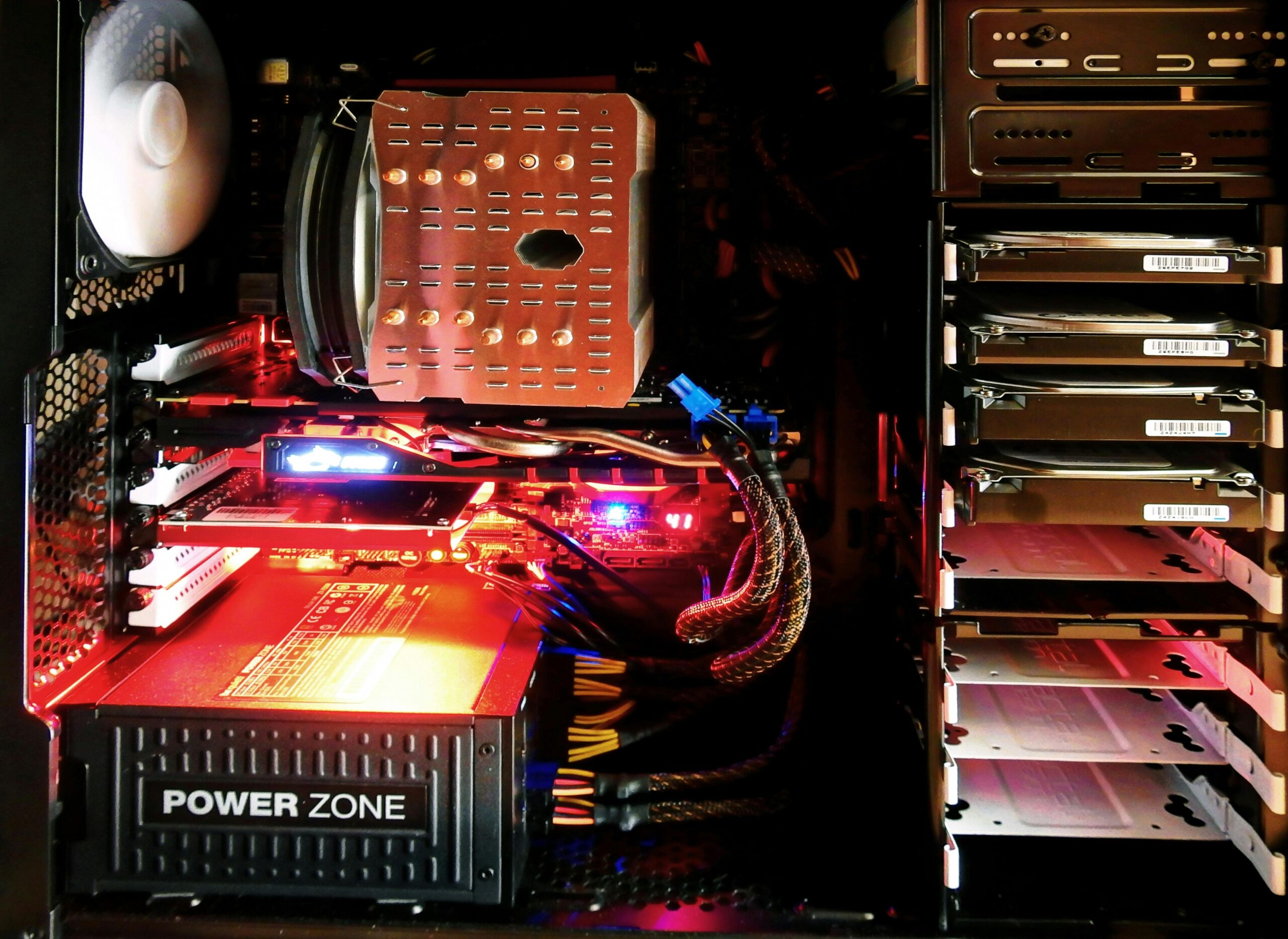
Overclocking Your GPU for Maximum FPS: The Ultimate Guide to Higher Gaming Performance
Introduction to GPU Overclocking
Overclocking your GPU is one of the most effective ways to boost gaming performance, increase FPS, and achieve smoother gameplay without investing in new hardware. Modern graphics cards are built with headroom that allows users to push beyond factory settings safely. However, doing it correctly requires understanding voltage, thermals, stability testing, and the right software tools.
This guide provides a complete walkthrough on how to overclock your GPU for maximum FPS. Whether you’re a beginner or an enthusiast, you’ll find best practices, recommended settings, and troubleshooting steps to ensure you achieve stable, high-performance results.
What Is GPU Overclocking?
GPU overclocking involves increasing your graphics card’s core clock, memory clock, or both, beyond the factory specifications. By raising these limits, your GPU processes data faster, resulting in higher FPS during gaming, better render times, and smoother performance in demanding applications.
How Overclocking Works
Overclocking pushes the GPU to run at higher frequencies. This increases output but also generates more heat and consumes more power. Modern GPUs automatically throttle performance when overheating, so keeping temperatures under control is essential.
Benefits of Overclocking
- Higher FPS in games
- Smoother gameplay at higher resolutions
- Better performance in VR
- Improved rendering speeds for creative workloads
- Extended lifespan of older GPUs through performance optimization
Is GPU Overclocking Safe?
Overclocking is generally safe when done correctly. Today’s GPUs include protection mechanisms that reduce clock speeds or shut down if temperatures exceed safe limits. Overclocking does not physically damage the card unless voltage increases are unsafe or cooling is inadequate.
Risks to Consider
- Higher temperatures
- Increased fan noise
- Potential system instability
- Higher power draw
By following proper procedures and maintaining stable temperatures, you can minimize risk while maximizing performance gains.
Tools You Need to Overclock Your GPU
Several software tools allow you to adjust clock speeds, fan curves, and voltage. The most popular and reliable options include:
- MSI Afterburner – Free tool for adjusting GPU clocks, fan speeds, and voltage {{AFFILIATE_LINK}}
- GPU-Z – Real-time GPU monitoring
- Unigine Heaven / 3DMark – Stress-testing benchmarks {{AFFILIATE_LINK}}
MSI Afterburner is the most commonly used because of its stability, intuitive interface, and compatibility with nearly all major GPUs.
How to Overclock Your GPU Step-by-Step
Step 1: Increase the Power Limit
In MSI Afterburner, increase the Power Limit slider to its maximum safe value. This allows the GPU to draw more power when needed and maintain higher clock speeds. Some cards also include a Temperature Limit slider—raise this slightly if available, but keep it under 87°C for safety.
Step 2: Raise the Core Clock Gradually
Start by adding +25 MHz to your GPU core clock. Apply the changes and launch a benchmark such as Heaven or 3DMark. If no crashes or artifacts appear, increase by another +25 MHz and retest.
Continue this process until you experience instability, then reduce the core clock by 25–50 MHz to reach a stable maximum overclock.
Step 3: Overclock the Memory
GPU memory can usually handle much higher frequency increases than the core clock. Start with +100 MHz increments and stress test after each increase. Watch carefully for shimmering textures, flashing objects, or pixel artifacts—signs that memory overclocking is unstable.
Step 4: Adjust the Fan Curve
An optimized fan curve helps control temperatures without excessive noise. Most users choose a slightly more aggressive fan curve to maintain stability. Create a curve that keeps temperatures between 70–80°C during heavy loads.
Step 5: Stress Test for Stability
Use a benchmark tool for at least 20–30 minutes to ensure your overclock is stable. For demanding games like Cyberpunk 2077, longer real-world testing is recommended. If the system crashes, reduce the clock speeds slightly and test again.
Expected FPS Gains From Overclocking
Your performance gains will vary depending on your GPU model, cooling system, silicon quality, and the games you play. On average, most users experience:
- 5–15 percent higher FPS
- Reduced stuttering in GPU-bound scenarios
- Better performance in high-refresh-rate gaming
High-end GPUs may gain slightly less because they are already optimized at the factory, while mid-range and older cards often see the biggest improvements.
Comparison: Stock vs Overclocked Performance
| Scenario | Stock GPU | Overclocked GPU |
| Average FPS in Modern AAA Games | 60 FPS | 68–72 FPS |
| GPU Clock Speed | 1750 MHz | 1950–2050 MHz |
| Temperature Under Load | 70°C | 75–80°C |
Best Practices for a Safe Overclock
Keep Thermals Under Control
Heat is the enemy of stability. Improving airflow inside your case or installing high-performance thermal paste can significantly improve cooling and overclocking potential.
Do Not Max Out Voltage Unless Necessary
Increasing voltage can unlock higher clock speeds but also raises temperatures dramatically. Most users should leave voltage at default settings unless they have high-end cooling.
Monitor Performance Regularly
Use GPU-Z or MSI Afterburner’s monitoring panel to keep an eye on clock speeds, power draw, and temperatures during gaming sessions.
Recommended Accessories for Better Overclocking Performance
Enhancing your GPU’s cooling environment can significantly improve your overclocking potential. A few recommended accessories include:
- High-performance case fans {{AFFILIATE_LINK}}
- Aftermarket GPU support brackets to reduce sag {{AFFILIATE_LINK}}
- Premium thermal paste for lower GPU die temperatures {{AFFILIATE_LINK}}
For additional PC performance tuning guides, visit our internal resource hub: {{INTERNAL_LINK}}
Common Problems and How to Fix Them
Game Crashes or Driver Errors
Reduce your core clock by 25–50 MHz and test again. Most crashes occur because the GPU clock is too high or thermals are exceeding limits.
Graphical Artifacts
Artifacts such as flickering textures or colorful sparks typically indicate an unstable memory overclock. Lower the memory clock in 50–100 MHz steps.
High Temperatures
- Increase fan speed
- Clean dust filters and fans
- Improve case airflow
- Lower voltage or clock speeds if necessary
Frequently Asked Questions (FAQ)
Does overclocking shorten GPU lifespan?
When done safely, overclocking does not significantly reduce GPU lifespan. Modern GPUs have thermal protections that prevent damage from overheating.
Can overclocking void my warranty?
Most manufacturers allow overclocking through approved software, but manually increasing voltage may void warranty terms. Always check your GPU’s warranty policy.
How much FPS gain should I expect?
Most users gain 5–15 percent FPS, depending on the GPU and cooling setup. Some GPUs with better cooling or silicon quality may achieve higher gains.
Is undervolting better than overclocking?
Undervolting reduces heat and power draw. It can sometimes improve performance by preventing thermal throttling, but it will not increase FPS like overclocking.
Should I use auto-overclocking tools?
Auto tools can provide a baseline, but manual tuning usually results in better stability and higher performance.
Conclusion
Overclocking your GPU is one of the best ways to maximize gaming performance, boost FPS, and extend the lifespan of your current hardware setup. With the right tools, careful testing, and safe thermal management, you can achieve a stable overclock that enhances your gaming experience without risking damage to your GPU.
To continue improving your PC performance, check out our related guides here: {{INTERNAL_LINK}}









