
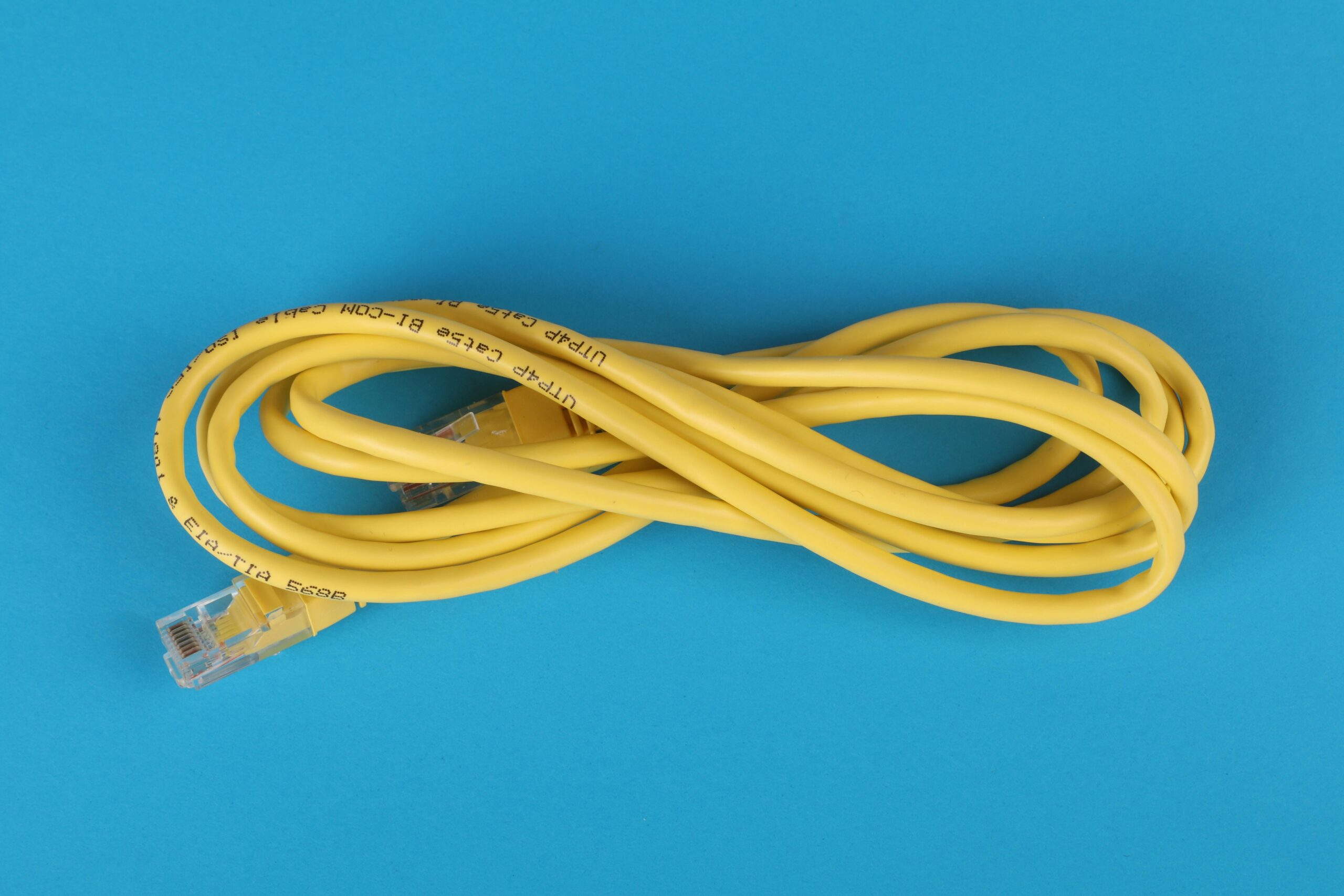
Setting Up a Multi-SSID Home Network for Different Devices
Introduction to Multi-SSID Home Networks
A modern home often contains a growing list of connected devices—smartphones, laptops, gaming consoles, smart TVs, IoT devices, smart home sensors, and more. Managing all of these devices on a single Wi-Fi network can create congestion, pose security risks, and reduce overall performance. One effective solution is setting up a multi-SSID home network. This approach allows homeowners to create separate Wi-Fi networks for different types of devices, offering improved security, better bandwidth allocation, and smoother performance.
In this guide, you will learn exactly how to build a multi-SSID home network, optimize it for different device categories, and ensure security and stability. Whether you are a home office worker, a gamer, or a smart home enthusiast, segmenting your Wi-Fi can greatly improve your network experience.
What Is a Multi-SSID Network?
A multi-SSID network is a wireless configuration where a single router or access point broadcasts multiple Wi-Fi network names (SSIDs). Each SSID can have its own security rules, passwords, VLAN assignments, and bandwidth settings. This is the same technology used in enterprise environments, and modern consumer routers now offer these features as well.
Benefits of Using Multiple SSIDs
- Improved security through device isolation
- Better performance and reduced congestion
- Optimized bandwidth allocation
- Separate guest networks to protect private data
- Segmentation of IoT devices
- Greater parental control flexibility
Why You Should Use Multiple SSIDs at Home
Many homeowners do not realize that mixing all devices on one Wi-Fi network can create problems. For instance, IoT devices such as smart bulbs and cameras typically use outdated security protocols and can expose the entire network to threats. Gamers may experience lag when sharing bandwidth with streaming devices, while work devices might need higher priority for video calls.
By moving different categories of devices onto separate SSIDs, each group gets the appropriate level of security and bandwidth priority. This setup also makes troubleshooting easier because you can quickly identify where traffic bottlenecks or security issues originate.
Examples of Device Segmentation
- Main household devices (phones, tablets, and laptops)
- Smart home IoT network
- Guest network for visitors
- High-performance network for gaming and streaming
- Work-from-home network with higher priority
Hardware Requirements for a Multi-SSID Network
To set up a multi-SSID network, you need a router or mesh system that supports broadcasting multiple SSIDs. Not all budget routers support this feature, so checking the router specifications is important.
Recommended Equipment Types
- Wi-Fi 6 routers and mesh systems
- Routers with VLAN support
- Business-class access points
- Routers with built-in Quality of Service controls
Recommended Router Options
If you need hardware upgrades, here are some popular options:
Planning Your Multi-SSID Setup
Before creating your network, plan how many SSIDs you need and what each one will be used for. A typical home uses three to five SSIDs, depending on the number of devices and user requirements.
Suggested SSID Structure
- Main SSID: For personal devices used daily
- IoT SSID: For smart home devices requiring limited permissions
- Guest SSID: For visitors, fully isolated
- Gaming/Streaming SSID: For high-bandwidth devices
- Work SSID: For remote work or business needs
Step-by-Step Guide to Setting Up Multiple SSIDs
This section walks you through the setup process. While steps may vary between router models, the process is generally similar.
Step 1: Log in to Your Router
Open your browser and enter your router’s IP address—usually 192.168.0.1 or 192.168.1.1. Enter your username and password to access the admin dashboard.
Step 2: Navigate to Wireless Settings
Look for a section labeled Wireless, Wi-Fi Settings, or SSID Management. Many routers will have an “Add SSID” or “Guest Network” option.
Step 3: Create Additional SSIDs
Add new SSIDs based on your planned structure. Assign each SSID a unique network name and choose a strong WPA2 or WPA3 password.
Step 4: Assign Each SSID to a VLAN (If Available)
VLAN tagging helps isolate traffic. For example, your IoT VLAN might be set to VLAN 20 while your gaming VLAN might be VLAN 30.
Step 5: Configure Bandwidth Settings
Use QoS (Quality of Service) settings to give priority to certain SSIDs. For example, your work SSID may get higher priority than the IoT network.
Step 6: Connect Devices to the Correct SSIDs
Finally, connect each device category to the correct SSID. Ensure that IoT devices are added only to the IoT network, and gaming devices go to the high-performance SSID.
Comparison: Single SSID vs Multi-SSID Network
| Feature | Single SSID | Multi-SSID |
| Security | Lower | Higher due to segmentation |
| Performance | Possible congestion | Optimized per device type |
| Bandwidth control | Limited | Flexible |
| Ideal for homes with many devices | No | Yes |
Best Practices for Multi-SSID Home Networks
To ensure your multi-SSID setup runs smoothly, follow these key tips.
1. Use WPA3 Security Where Possible
WPA3 offers stronger encryption and protects against brute-force attacks. If a device does not support WPA3, use WPA2 with a strong password.
2. Keep IoT Devices Segmented
IoT devices are often the weakest link in home networks. Keeping them isolated protects your personal devices if an IoT device is compromised.
3. Regularly Update Firmware
Router manufacturers frequently release security patches. Make sure your router’s firmware is always up to date.
4. Monitor Network Traffic
Use your router’s monitoring tools to check for spikes in usage, unknown devices, or unusual patterns.
5. Consider Using a Dedicated Access Point
If your home is large or your router is older, adding access points can help better distribute the SSIDs throughout the house.
Troubleshooting Common Issues
Slow Speeds on a Specific SSID
Check QoS settings, bandwidth limitations, and device placements. Devices too far from the router may experience signal drops.
IoT Devices Not Connecting
Some IoT devices require 2.4 GHz networks. Ensure your IoT SSID supports the correct wireless band.
Guest Network Not Isolated
Double-check guest isolation settings to ensure that guests cannot access internal devices or shared folders.
Additional Resources
To deepen your knowledge of advanced networking concepts, visit our internal resource: Network Optimization Guide.
Conclusion
Setting up a multi-SSID home network is one of the most effective ways to improve household Wi-Fi performance, enhance security, and better manage the growing number of connected devices. Whether you want to secure IoT gadgets, improve gaming speeds, or create a stable work-from-home setup, segmenting your network offers a powerful and flexible solution. With the right planning and equipment, your home network can be more efficient, secure, and reliable than ever before.
FAQ
Can I create multiple SSIDs on any router?
No. Only routers that support multiple SSIDs or guest networks can broadcast more than one Wi-Fi network.
Will multiple SSIDs slow down my Wi-Fi?
Only if improperly configured. With proper bandwidth management, multi-SSID setups often improve performance.
Do IoT devices really need their own network?
Yes. IoT devices are generally less secure, so isolating them protects sensitive devices like laptops and phones.
Is a multi-SSID setup compatible with mesh systems?
Many modern mesh systems support multiple SSIDs, but always check the manufacturer’s specifications.
How many SSIDs should a home use?
Most homes benefit from 3–5 SSIDs based on device categories and user needs.









